
Download USB Drivers for All Phone Brands
All the best free unzip tools to open firmware files on Windows, Mac, and Linux.
What Are USB Drivers and Why Do You Need Them?
USB drivers are small software programs that help your computer talk to your phone or tablet. Think of them as translators between your PC and your device.
Without the right USB driver installed, your computer won’t recognize your phone. This means you can’t flash firmware, transfer files, or use tools like SP Flash Tool, Odin, or QFIL.
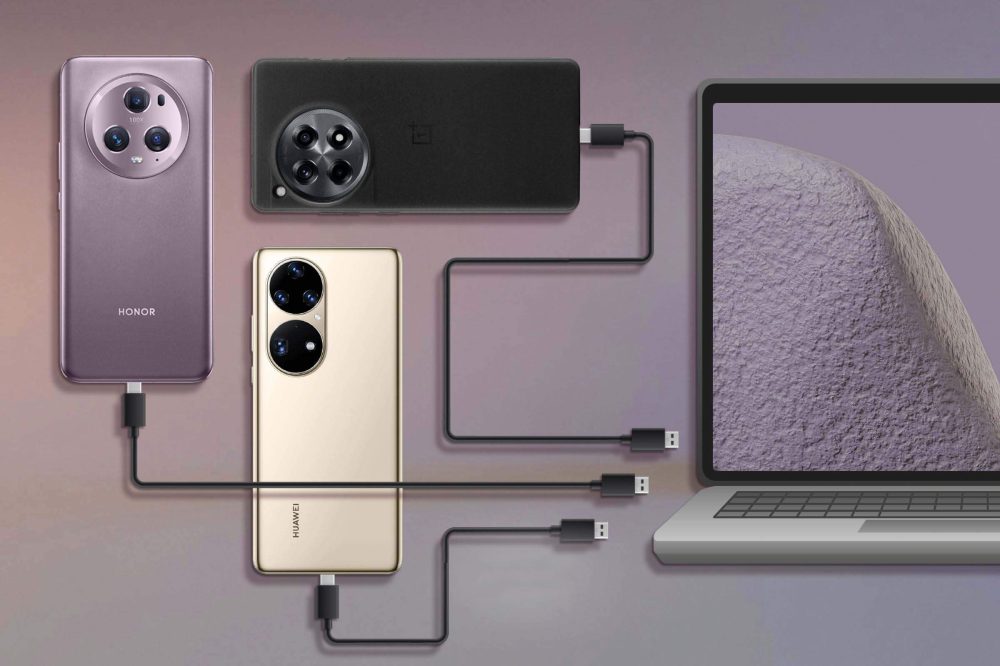
Why USB Drivers Are Essential for Firmware Flashing
When you want to flash firmware on your phone, your computer needs to communicate directly with your device. Here’s what USB drivers do:
- Make your phone visible to flashing tools like SP Flash Tool, Odin, QFIL, and others
- Prevent "device not detected" errors during firmware installation
- Fix USB connection problems that stop flashing from working
- Enable file transfers between your phone and computer
- Allow recovery mode connections when your phone won't boot normally
All USB drivers on this page are safe, direct downloads that we update regularly. No viruses, no malware – just clean driver files that work.
Download USB Drivers by Phone Brand
Choose your phone brand below to download the correct USB driver:
Popular Phone Brands
| Brand | Description | Download |
| Samsung | For Galaxy phones, tablets, and all Samsung devices | [Download Samsung USB Driver] |
| Xiaomi | Works with Mi, Redmi, and POCO phones | [Download Xiaomi USB Driver] |
| Oppo | For all Oppo smartphones and ColorOS devices | [Download Oppo USB Driver] |
| Realme | Compatible with all Realme phone models | [Download Realme USB Driver] |
| Vivo | For Vivo phones with FunTouch OS | [Download Vivo USB Driver] |
| Huawei | Works with Huawei and Honor devices | [Download Huawei USB Driver] |
| OnePlus | For all OnePlus smartphone models | [Download OnePlus USB Driver] |
| Motorola | Compatible with Moto phones and tablets | [Download Motorola USB Driver] |
| LG | For LG phones (discontinued but still supported) | [Download LG USB Driver] |
| Sony | Works with Xperia phones and tablets | [Download Sony USB Driver] |
More Phone Brands A-Z
| Brand | Download | Brand | Download |
| Alcatel | [Download] | Nokia | [Download] |
| Asus | [Download] | Nothing | [Download] |
| BlackBerry | [Download] | Nubia | [Download] |
| Coolpad | [Download] | Infinix | [Download] |
| Google Pixel | [Download] | Tecno | [Download] |
| HTC | [Download] | ZTE | [Download] |
| Lenovo | [Download] | Meizu | [Download] |
Universal USB Drivers
Don’t see your brand? Try these universal drivers that work with most Android phones:
| Driver Type | Best For | Download |
| All-in-One USB Driver | Most Android phones and tablets | [Download Universal Driver] |
| ADB & Fastboot Driver | Advanced users and developers | [Download ADB Driver] |
| MTK USB Driver | MediaTek chipset phones | [Download MTK Driver] |
| Qualcomm USB Driver | Snapdragon chipset phones | [Download Qualcomm Driver] |
How to Install USB Drivers (Easy Steps)
Follow these simple steps to install USB drivers on your computer:
Step 1: Download the Right Driver
- Find your phone brand in the list above
- Click the download link for your brand
- Save the file to your Desktop or Downloads folder
Step 2: Extract the Driver Files
- Right-click the downloaded ZIP file
- Select "Extract Here" or "Extract All"
- Open the extracted folder
Step 3: Install the Driver
- Look for a file ending in .exe (setup file)
- Right-click the .exe file and select "Run as Administrator"
- Follow the installation wizard (just click Next, Next, Install)
- If you see .inf files instead: Right-click the .inf file and choose "Install"
Step 4: Restart and Test
- Restart your computer after installation completes
- Connect your phone with USB cable
- Check Device Manager to see if your phone appears
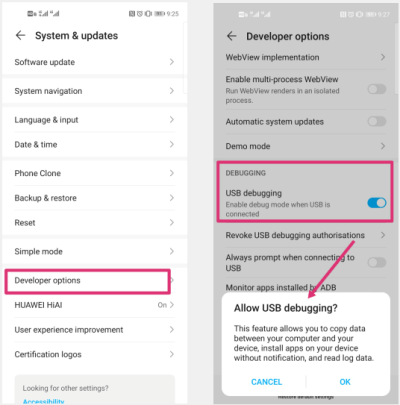
Pro Tip: Enable USB Debugging
Before connecting, turn on USB Debugging on your phone:
ZIP File Won’t Open
- 1. Go to Settings > About Phone
- 2. Tap "Build Number" 7 times to enable Developer Options
- 3. Go to Settings > Developer Options
- 4. Turn ON "USB Debugging"
Common USB Driver Problems and How to Fix Them
Problem 1: "Device Not Recognized" Error
What it means: Your computer can’t see your phone at all.
How to fix it:
- Try a different USB cable (many cables are charge-only)
- Use a USB 2.0 port instead of USB 3.0
- Install the correct USB driver for your phone brand
- Enable USB Debugging on your phone
- Try connecting in Download Mode or Recovery Mode
Problem 2: Driver Installation Blocked
What it means: Windows 10/11 blocks “unsigned” drivers for security.
How to fix it:
- 1. Hold Shift and click Restart in Windows
- 2. Choose "Troubleshoot" → "Advanced Options"
- 3. Select "Startup Settings" → "Restart"
- 4. Press F7 to disable driver signature enforcement
- 5. Install your USB driver normally
- 6. Restart your computer when done
P3: Driver Installs But Phone Still Not Detected
What it means: Driver installed successfully but connection still fails.
How to fix it:
- Uninstall and reinstall the USB driver
- Try a different USB port (preferably USB 2.0)
- Use original USB cable if possible
- Update Windows to latest version
- Check phone is in correct mode (Download/Fastboot mode)
Problem 4: "Unknown Device"
in Device Manager
What it means: Windows sees something connected but doesn’t know what it is.
How to fix it:
- 1. Right-click "Unknown Device" in Device Manager
- 2. Select "Update Driver"
- 3. Choose "Browse my computer for drivers"
- 4. Point to your extracted USB driver folder
- 5. Let Windows find and install the driver
Problem 5: Multiple Phones
Show Same Name
What it means: All your phones appear as “Android Device” instead of real names.
How to fix it:
- Install brand-specific drivers instead of generic ones
- Uninstall generic "Android ADB Interface" from Device Manager
- Reinstall proper drivers for each phone brand you use
Frequently Asked Questions
Got a quick question? Check out our most common support topics.
Not always. Many phones from the same brand use the same USB driver. For example, one Samsung driver works for Galaxy S21, S22, S23, etc. But different brands usually need different drivers.
Sometimes. Universal drivers work with many phones, but brand-specific drivers are more reliable. If you flash firmware often, install drivers for each brand you own.
Windows 11 is stricter about driver security. You may need to disable driver signature enforcement temporarily (see Problem 2 above) or find newer signed drivers.
Usually no. Mac and Linux have built-in support for most Android phones. You might need ADB/Fastboot tools, but rarely need special USB drivers.
You probably have a charge-only USB cable. Many cheap cables only carry power, not data. Try the original cable that came with your phone, or buy a quality data cable.
Check Device Manager while your phone is connected. You should see your phone listed by name (like “Samsung Galaxy S21”) instead of “Unknown Device” or nothing at all.
No, USB drivers can’t damage your phone. They’re just software that helps communication. However, using wrong flashing tools with wrong firmware can brick your phone.
USB drivers modify system files that require admin permission. This is normal and safe – just right-click and “Run as Administrator” when installing.
Still having USB driver problems? Contact our support team at Support@FreeFirmwareRoms.com – we’ll help you get your phone connected and ready for firmware flashing!