

Best ZIP Tools for Extracting Firmware Files
All the best free unzip tools to open firmware files on Windows, Mac, and Linux.
7-Zip (FREE)
- Works with all firmware ZIP files
- Completely free and safe to use
- Supports all file formats you'll need
WinRAR (FREE)
- Popular choice for Windows users
- 40-day free trial available
- Great for large firmware files
PeaZip (FREE)
- Good alternative to 7-Zip
- Works with 200+ file formats
- Easy to use interface

For Mac Users
The Unarchiver (FREE)
- Best free option for Mac
- Handles all firmware file formats
- Available in Mac App Store
Keka (Paid)
- Premium option for Mac users
- Fast extraction speeds
- Clean, simple interface
PeaZip (FREE)
- Good alternative to Unarchiver
- Works with 200+ file formats
- Easy to use interface

For Linux Users
Command Line (Built-in)
-
Use terminal:
unzip filename.zip - Already installed on Linux systems
- Fast and reliable
Ark (FREE)
- Default tool for KDE-based distros
- Clean, beginner-friendly interface
- Supports all common formats
PeaZip (FREE)
- Same great tool available for Linux
- Supports over 180 archive formats
- GUI if you prefer visual interface
Why You Need to Extract ZIP Files for Firmware
When you download firmware files from our website, they always come in ZIP format. We zip all firmware packages to make your downloads faster and protect the files from getting damaged during transfer.
Every firmware package contains multiple important files like .scatter files, .bin files, .img files, and flashing tools. These files need to be extracted properly before you can flash them to your phone or device.
Important: Using the wrong extraction tool can corrupt your firmware files. This means your phone flashing might fail, so always use trusted ZIP tools we recommend above.
Step-by-Step Guide: How to Extract ZIP Files
Follow these simple steps to extract your firmware files correctly:
Method 1: Right-Click Extract (Easiest)
- 1. Find your downloaded ZIP file (usually in Downloads folder)
- 2. Right-click on the ZIP file
- 3. Select "Extract Here" or "Extract to folder"
- 4. Wait for extraction to complete
- 5. Check the extracted folder for your firmware files
Method 2: Using ZIP Software
- 1. Open your ZIP tool (7-Zip, WinRAR, etc.)
- 2. Navigate to your downloaded ZIP file
- 3. Double-click the ZIP file to open it
- 4. Click "Extract" button
- 5. Choose where to save the files
- 6. Click OK to start extraction
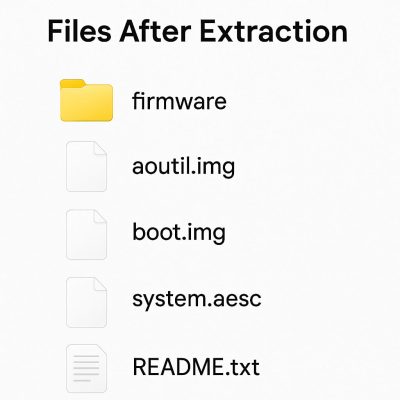
What Files Should You See After Extraction?
After extracting, you should find files like:
- scatter files (for MediaTek phones)
- bin files (firmware data)
- img files (system images)
- exe files (flashing tools)
- Readme or instruction files
Note: All our firmware files are NOT password protected unless specifically mentioned on the download page.
Troubleshooting ZIP File Problems
ZIP File Won’t Open
Try this:
- Download the file again (might be incomplete)
- Try a different ZIP tool (7-Zip usually works best)
- Check if file is still downloading
- Make sure you have enough storage space
File Says “Corrupted” or “Damaged”
Solutions:
- Re-download the firmware file completely
- Check your internet connection during download
- Try extracting with 7-Zip (handles damaged files better)
- Contact us if problem continues
Extraction Stops Halfway
Fix it:
- Close other programs to free up memory
- Check available disk space (need 2x the ZIP size)
- Try extracting to a different folder
- Restart your computer and try again
ZIP Asks for Password
What to do:
- Check the download page for password info
- Most our files don't need passwords
- Try extracting with different tool
- Contact support if you're stuck
Frequently Asked Questions
Got a quick question? Check out our most common support topics.
7-Zip is our top recommendation because it’s free, reliable, and handles all firmware file types perfectly. It rarely has problems with large files that other tools might struggle with.
Always extract on your PC or computer. Phones and tablets don’t handle large firmware files well, and you need the extracted files on your computer anyway for flashing.
First, try downloading the file again. Most “corrupted” files are actually incomplete downloads. If it still doesn’t work, try 7-Zip as it can often open files that other tools can’t.
You need at least double the ZIP file size. For example, if your ZIP is 2GB, make sure you have at least 4GB free space before extracting.
Yes, you can delete the ZIP file once extraction is complete and you’ve confirmed all files extracted properly. Keep the extracted folder until you successfully flash your device.
Large firmware files take time to extract. A 3GB firmware might take 5-10 minutes depending on your computer speed. Don’t interrupt the process – let it finish completely.
ZIP files are smaller and safer for downloading. They download faster, use less bandwidth, and protect the firmware files from getting corrupted during transfer from our servers to your computer.
Need more help? Contact our support team at Support@FreeFirmwareRoms.com – we’re here to help you get your firmware files extracted and ready for flashing!